How to compress a PDF for email
Most of the weight in a large PDF is images: scans, photos and screenshots. Compress PDF makes those images smaller and leaves the text alone. Whether your file shrinks depends on what is inside it, and this guide explains how to tell.
Find your limit first
Email services cap the size of attachments, commonly somewhere between 10 and 25 MB, and the cap applies to the whole message. Check the limit of the service you are sending from and the one you are sending to, and aim a little under the smaller of the two. That is the number to enter if you use Target size.
Steps
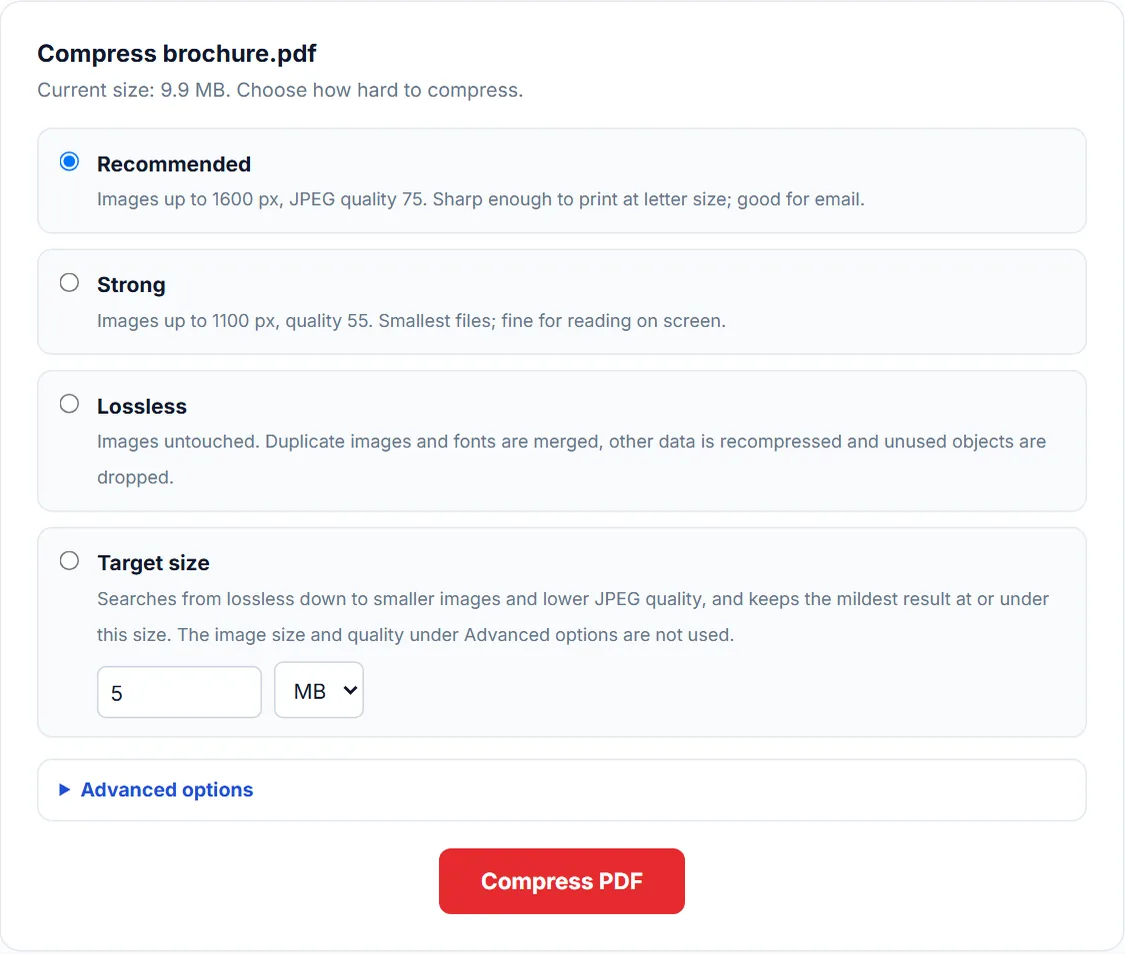
- Open Compress PDF and upload the file (up to 150 MB). Its current size is shown above the options.
- Pick a level, or pick Target size and enter your limit in MB, then click Compress PDF.
- Read the size before and after. Click Preview Document to look at the pages, then Download File. The file keeps its name with _compressed added.
Which level to pick
- Recommended scales images to at most 1600 pixels on the long side and saves them as JPEG at quality 75. Start here. Pages stay sharp on screen and in ordinary printing.
- Strong scales to at most 1100 pixels at quality 55. Use it when Recommended is not enough and the document will be read on screen. Small text inside scanned pages gets softer.
- Lossless leaves every image untouched. It merges repeated images and fonts and recompresses the rest, so nothing changes visually; files that repeat a logo on every page can still shrink a lot.
- Target size takes the limit you found, such as 10 MB, searches from lossless down to smaller images and lower quality, and keeps the mildest result that fits. It runs up to four passes, so it takes longer than one level. If even images of 500 pixels at quality 35 are too big, you get the smallest result and a note on what takes the space. For upload forms with a limit such as 2 MB or 200 KB, how to compress a PDF to a specific size has measured results.
Why a file does not get smaller
A message that the file "is already as small as this tool can make it" means the rebuilt file was not at least 1% smaller, so you are given the original, unchanged. The usual reasons:
- It is mostly text and vector graphics. There are no large images to shrink.
- The images are already modest JPEGs. Recommended cannot improve on them. Strong may, because of its lower size cap.
- The images are of a kind the tool skips. CMYK images and JPEG 2000 or fax-encoded scans are left as they are; the result counts them.
- It is mostly fonts. Embedded fonts cannot be made smaller here; the result says when fonts take most of the space.
Searchable text, links and form fields are not affected at any level.
If it is still too big
- Send fewer pages. Extract Pages or Delete Pages removes what the recipient does not need.
- Split it across two messages with Split PDF or Combine PDF.
- If the file is a scan made at high resolution, scan again at a lower setting. That beats any compression after the fact.
- Share a link from your own cloud storage instead of attaching the file.
If the file has a password
An encrypted PDF stops with "This PDF is encrypted", even when it opens without a password and only restricts printing or copying. Remove the protection with Unlock PDF, compress, and protect it again with Protect PDF if needed.
Frequently asked questions
How much smaller will my PDF get?
It depends on the images inside. A scan or a photo-heavy file can shrink a great deal; a text document may not shrink at all. The result shows the size before and after, and you get the original back if the rebuilt file is not at least 1% smaller.
Will compression make the text blurry?
Real text stays sharp at every level because it is not touched. Text that is part of a scanned image gets softer at the Strong level.
Is my file uploaded to be compressed?
No. The images are re-encoded by your browser on your device, and the compressed file is built there.
Tools used in this guide
More guides
- Are online PDF tools safe? What happens to your file
- How to check if a website uploads your file
- How to merge PDF files without uploading them
- How to compress a PDF to a specific size
- How to redact a PDF properly
- Can a redacted PDF be unredacted?
- How to make a scanned PDF searchable
- How to password protect a PDF
- How PDF tools work in a browser without uploading anything
- How to fill out a PDF that is not fillable
- PDF to JPG or PNG: which one to choose
- How to remove metadata from a PDF
- Split or extract PDF pages: which tool to use
Or see all guides and how this site compares with other PDF services.