How to fill out a PDF that is not fillable
A form made for printing has no fields: clicking on it does nothing, because the boxes are only lines on the page. You can still fill it in on screen by placing text over the boxes. This guide shows how to check which kind of form you have, and how to fill one without fields in PDF Editor.
Check whether the form has fields
Open the file in Fill PDF. The line under the file name tells you which kind it is: "N Interactive Fields Found" means the form has real fields, which Fill PDF lists by name so you can type into them. "Standard PDF" means there are none, which is normal for a scanned form, a form exported from a word processor without fields, or one that was flattened.
If it has fields, fill them there. To stop the recipient changing your answers in an ordinary PDF reader afterwards, run the filled file through Flatten PDF. The rest of this guide is for forms without fields.
Fill it with the PDF Editor
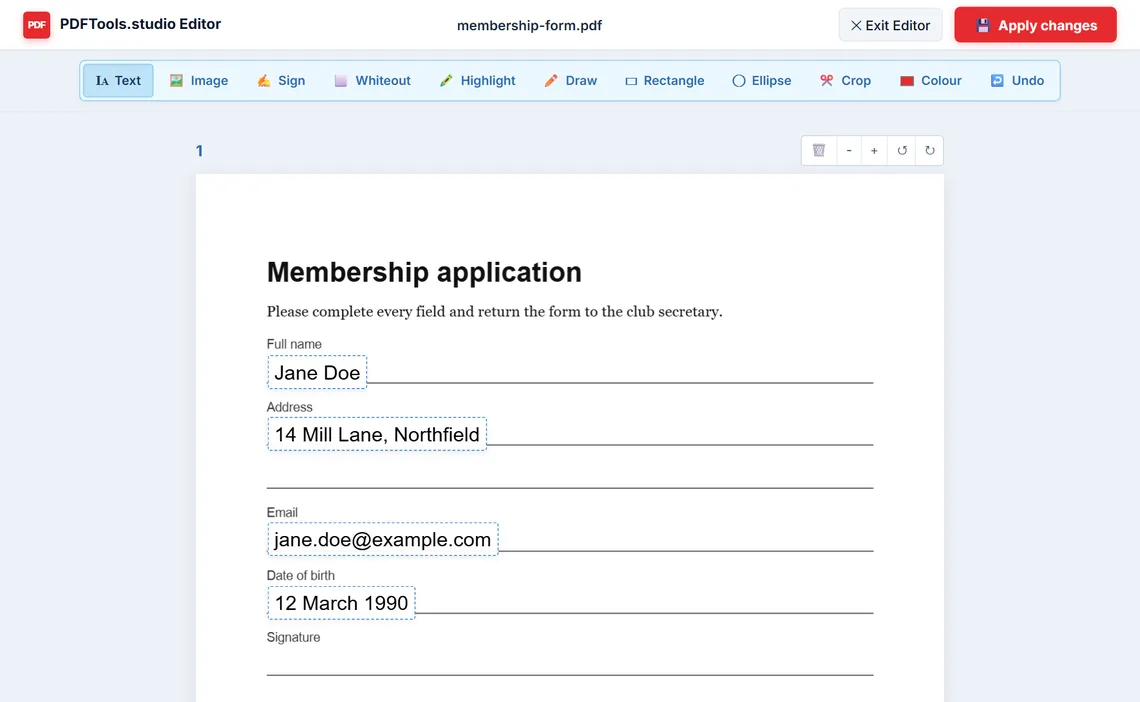
- Open PDF Editor and upload the form. Every page is shown at once; zoom in if the boxes are small.
- Choose Text in the toolbar and click inside the first box. A new text box starts with "Type text here"; replace it with your answer, and pick Helvetica, Times or Courier and a size that fits the box.
- Drag each box so it sits on the line, and pull the corner handle if the text needs more room. Repeat for every answer.
- For a tick box, place a small text box with an X over it. To change words already printed on the form, click them to retype them, or cover them with Whiteout first.
- Click Apply changes, then Download PDF.
Add the date and your signature
In the same editor, choose Sign to draw a signature in a pop-up pad, type it in a handwriting font, or upload a photo of it; the white paper around an uploaded signature is made transparent. Type the date as an ordinary text box next to it.
If the form only needs a signature, Sign PDF is quicker: draw, type or upload it, drag it into place on a preview of the real page, and tick the date if the form asks for one. Either way the signature is a picture on the page, like signing a printout, not a certificate-based digital signature.
The quick alternative: a stamp on page 1
When Fill PDF finds no fields, it offers three boxes instead: a name, a date and a note. Whatever you type is written at the top left of page 1, starting 50 points from the left edge and 50 points below the top, over anything printed there, as lines reading "Signed by:", "Date:" and "Note:". That suits a form that only needs a name and a date as an acknowledgement; for anything longer, use the editor.
Things that trip people up
- The editor's three fonts cover Western European letters only (the WinAnsi set). Letters such as Ł, č, ő or ğ, Cyrillic, Chinese or emoji show on screen, but saving stops with "Failed to save edited PDF: WinAnsi cannot encode" and nothing downloads.
- Dragging boxes and drawing a signature follow the mouse or trackpad, which a finger on a touch screen does not move. Fill forms on a computer.
- A form that needs a password to open fails with "Error loading PDF". Remove the password with Unlock PDF first.
- Saving builds a new file from copied pages, so bookmarks and the title and author fields are not kept. Set them again with PDF Metadata if they matter.
Frequently asked questions
Why can I not type in my PDF form?
Because it has no form fields. A scanned form, or one saved from a word processor without fields, only shows lines and boxes. Place text over them with a PDF editor instead of clicking into them.
Can I tick a checkbox on a PDF that is not fillable?
Not as a real checkbox, but you can place a small text box with an X over it. Printed and on screen it looks the same.
Is my form uploaded when I fill it here?
No. The editor and the other tools run in your browser, so the form and your answers stay on your device.
Tools used in this guide
More guides
- Are online PDF tools safe? What happens to your file
- How to check if a website uploads your file
- How to merge PDF files without uploading them
- How to compress a PDF for email
- How to compress a PDF to a specific size
- How to redact a PDF properly
- Can a redacted PDF be unredacted?
- How to make a scanned PDF searchable
- How to password protect a PDF
- How PDF tools work in a browser without uploading anything
- PDF to JPG or PNG: which one to choose
- How to remove metadata from a PDF
- Split or extract PDF pages: which tool to use
Or see all guides and how this site compares with other PDF services.