How to compress a PDF to a specific size
Upload forms and portals often set a limit such as 2 MB, 1 MB or 200 KB. The Target size option in Compress PDF tries settings from the mildest to the strongest and keeps the mildest result that fits, so you do not have to guess a level. This guide covers PDF files; to shrink a JPG or PNG, use Compress Images.
Steps
- Open Compress PDF and upload the PDF (up to 150 MB). Its current size is shown above the options.
- Choose Target size, type the limit and pick MB or KB. The box starts at half the current size.
- Click Compress PDF. The progress line names each setting as it is tried, up to four of them.
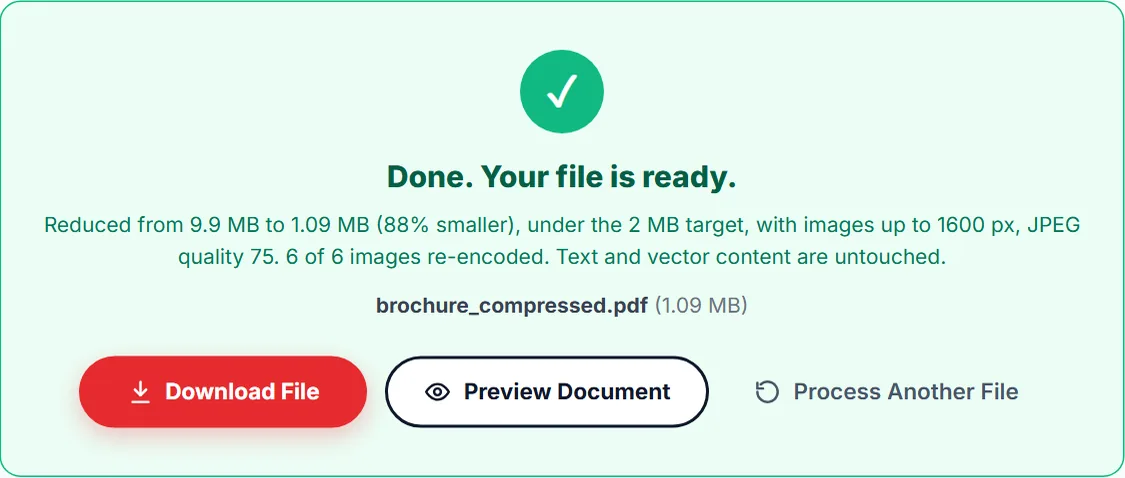
- Read the result. It gives the new size and the setting that reached it, or says that the target could not be reached. Click Preview Document to check the pages, then Download File. The file keeps its name with _compressed added.
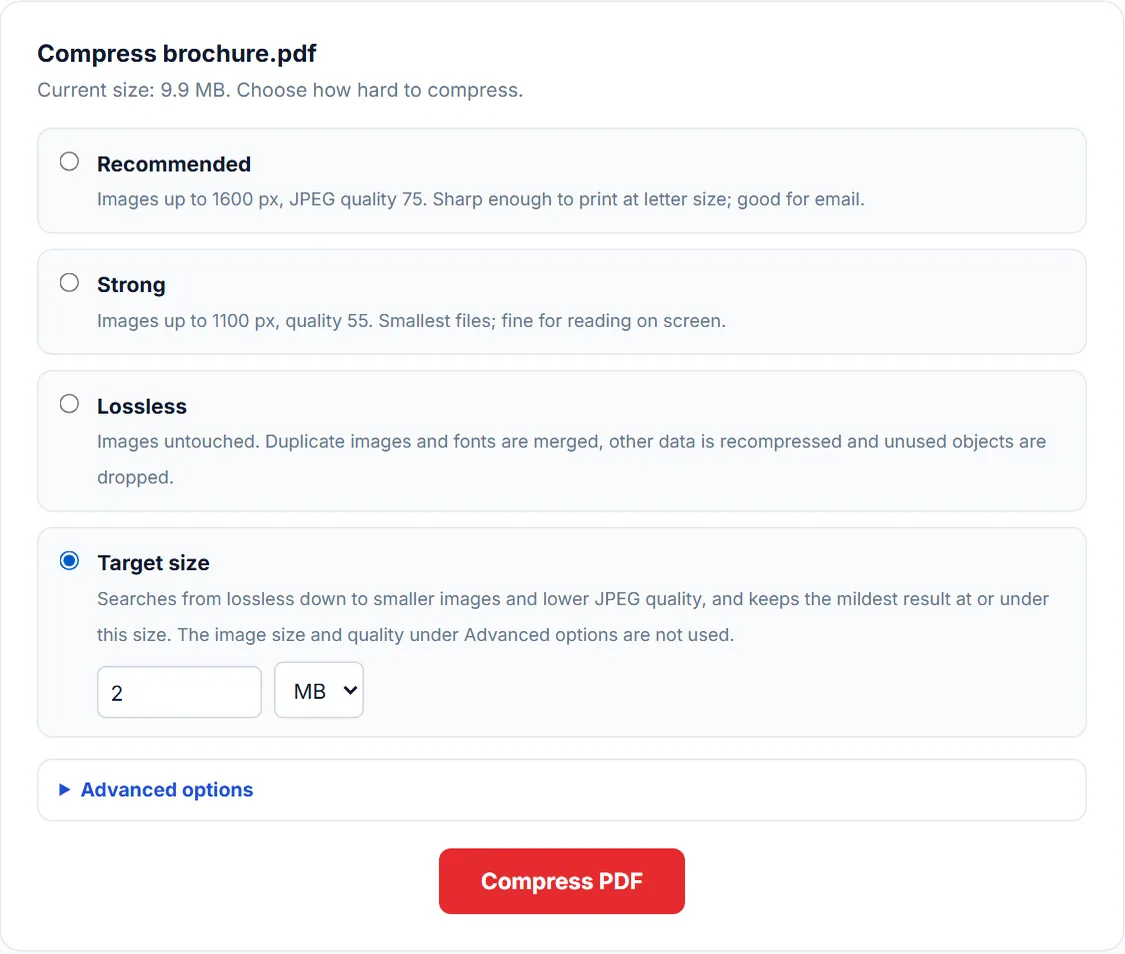
What Target size tries
Target size works through eight settings, from the mildest to the strongest:
- Lossless: images untouched, identical copies merged, other data recompressed.
- Images up to 2400 pixels on the long side, JPEG quality 85.
- 1600 pixels, quality 75, the same as the Recommended level.
- 1300 pixels, quality 65.
- 1100 pixels, quality 55, the same as the Strong level.
- 900 pixels, quality 50.
- 700 pixels, quality 40.
- 500 pixels, quality 35.
Each step shrinks the images further, so the tool does not run all eight. It tries the middle step, then the middle of the half that is left, which takes at most four passes, and keeps the mildest setting whose result is at or under the target. Only images change: text, fonts and vector drawings stay as they are at every step.
Under Advanced options, Convert images to greyscale and Remove XMP metadata, page thumbnails and editing data still apply to Target size. The image size and quality set there do not.
Measured results
Three test files were made for this guide on September 30, 2026 and run through Compress PDF in Chrome on Windows:
- Scanned letter: 5 pages, each a colour scan at 300 dpi (2480 by 3508 pixels, JPEG quality 85). 7.05 MB.
- Photo brochure: 6 pages, each with a photo of 3000 by 2000 pixels (JPEG quality 92) above a column of text. 9.9 MB.
- Text statement: 10 pages of text in a standard font, with no images. 20.16 KB.
| Setting | Scanned letter, 7.05 MB | Photo brochure, 9.9 MB | Text statement, 20.16 KB |
|---|---|---|---|
| Lossless | 7.05 MB, original kept (saving under 1%) | 9.9 MB, original kept (saving under 1%) | 18.37 KB (8% smaller) |
| Recommended | 1.33 MB (81% smaller) | 1.09 MB (88% smaller) | 18.37 KB |
| Strong | 554.89 KB (92% smaller) | 396.49 KB (96% smaller) | 18.37 KB |
| Target 2 MB | 1.33 MB, with 1600 px at quality 75 | 1.09 MB, with 1600 px at quality 75 | 18.37 KB, lossless |
| Target 1 MB | 840.73 KB, with 1300 px at quality 65 | 619.86 KB, with 1300 px at quality 65 | 18.37 KB, lossless |
| Target 500 KB | 367.23 KB, with 900 px at quality 50 | 396.49 KB, with 1100 px at quality 55 | 18.37 KB, lossless |
| Target 200 KB | 87.77 KB, with 500 px at quality 35 | 150.35 KB, with 700 px at quality 40 | 18.37 KB, lossless |
Sizes are as the result message reports them. Your own files will differ: what counts is how much of the file is images and how large they are.
Reading the numbers
- For 2 MB, Recommended was enough. It took the scan from 7.05 MB to 1.33 MB and the brochure from 9.9 MB to 1.09 MB, and Target size chose the same setting.
- Small targets cost detail in scans. The scan needed 900 pixels at quality 50 for 500 KB, and the last step, 500 pixels at quality 35, for 200 KB. At 500 pixels an A4 page holds about 43 pixels per inch: the heading of the test letter stayed readable, but its 10-point body text did not. At 900 pixels, about 77 per inch, the body text was still clear on screen. Look at the preview before you send a scan compressed this far.
- Photos survive small targets better. The brochure's photos fill about half a page, so 700 pixels across still looks fine on screen.
- Text barely changes. The statement came out at 18.37 KB whatever the setting, 8% smaller, all of it from rewriting the file. There is nothing for Target size to shrink, and a file like this is far below any common limit already.
- Target size takes longer. On the test computer one level took about 7 seconds for the scan or the brochure; Target size took 20 to 33 seconds because it runs up to four passes.
When the target cannot be reached
If the last step is still too big, you get the smallest file the tool could make and a message saying so. With a 50 KB target, the scan gave:
The 50 KB target could not be reached. The smallest this tool can make the file is 87.77 KB (98% smaller than 7.05 MB), with images up to 500 px, JPEG quality 35. 4 identical copies merged; 5 of 5 images re-encoded. Most of the file is images (100%, 86.19 KB).
The last sentence says what takes the space. Then try one of these:
- Send fewer pages. Extract Pages or Delete Pages keeps only what the form asks for.
- If the form accepts several files, split the document with Split PDF.
- For a colour scan of a black and white document, tick Convert images to greyscale under Advanced options and run Target size again.
- Scan the paper again at a lower resolution, such as 150 dpi, in greyscale. A smaller scan beats compressing a large one.
- If the message says most of the file is fonts, compression cannot help: the fonts are needed to show the text.
Which number to type
Type the limit as the form states it. Target size counts 1 MB as 1,000,000 bytes and 1 KB as 1,000 bytes. Some forms count 1 MB as 1,048,576 bytes instead; a file under 1,000,000 bytes passes either way, so there is no need to leave a margin.
The result message counts in units of 1,024, so a file that meets a 1 MB target is reported as 976.56 KB or less. If the limit is for email rather than an upload form, see how to compress a PDF for email.
Frequently asked questions
Can I compress a PDF to exactly 200 KB?
No tool can hit an exact size, because each setting gives whatever size the images come to. Target size gives the mildest result at or under 200 KB; in the tests on this page that was 87.77 KB for a five-page scan and 150.35 KB for a six-page brochure.
Does Target size make text blurry?
Real text is never changed, so it stays sharp at every step. Text that is part of a scanned image gets softer as the image gets smaller. In the test on this page, the 10-point text of a scanned letter could no longer be read at the last step, 500 pixels.
Is the PDF uploaded to be compressed?
No. The images are decoded and re-encoded by your browser on your device, and the new file is built there. You can confirm it in your browser's network panel while the tool runs.
Tools used in this guide
More guides
- Are online PDF tools safe? What happens to your file
- How to check if a website uploads your file
- How to merge PDF files without uploading them
- How to compress a PDF for email
- How to redact a PDF properly
- Can a redacted PDF be unredacted?
- How to make a scanned PDF searchable
- How to password protect a PDF
- How PDF tools work in a browser without uploading anything
- How to fill out a PDF that is not fillable
- PDF to JPG or PNG: which one to choose
- How to remove metadata from a PDF
- Split or extract PDF pages: which tool to use
Or see all guides and how this site compares with other PDF services.