How to merge PDF files without uploading them
Merging is a job a browser does well. Pages are copied from one file into another exactly as they are, so nothing needs a server. Merge PDF does it on your device, and this guide covers the steps and the details that catch people out.
Steps
- Open Merge PDF. Click Choose Files or drag your PDFs onto the upload zone. You can pick several at once and add more later with + Add More Files.
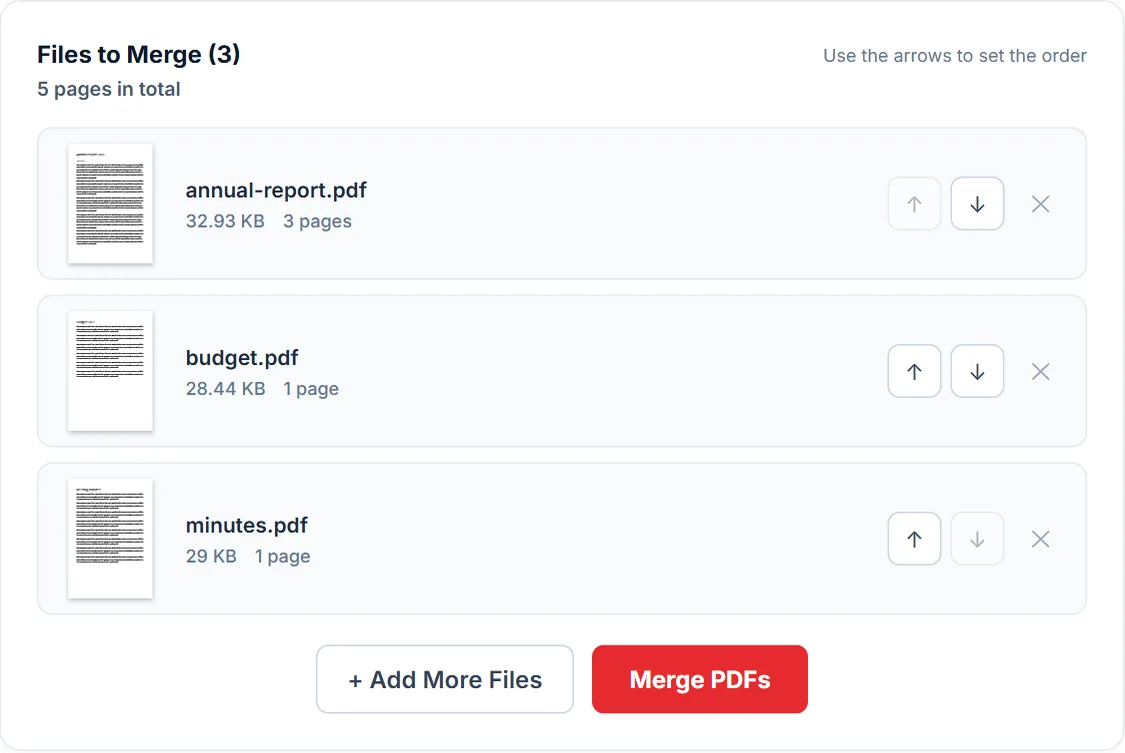
- Each file shows its first page and page count. Use the up and down arrows to set the order. Remove any file you added by mistake.
- Click Merge PDFs. The button stays grey until the list holds at least two files.
- Click Preview Document to check the result, then Download File. The file is named merged_document.pdf.
Files you pick together are added in the order your browser lists them, which is often alphabetical. Naming them 01, 02, 03 before you start saves moving each one with the arrows. On a phone, use Choose Files, since drag and drop needs a desktop browser.
Check that nothing is uploaded
You do not have to take the page's word for it. Open your browser's developer tools (F12, or Cmd+Option+I on a Mac), choose the Network tab and clear the list. Then add your files and click Merge PDFs. No request carries your files while they are read and joined. You may see entries that start with blob:, which are the result held in the tab's own memory, not a transfer.
For a stricter test, load the page, turn off Wi-Fi or switch on flight mode, and merge again. It still works, because the libraries that join the files and draw the thumbnails and the preview came with the page. How to check if a website uploads your file explains both tests in more detail.
What is kept and what is lost
Page size, text, fonts, images and vector graphics are copied unchanged, so the pages look and print the same as before. Nothing is re-rendered or compressed.
Bookmarks are not copied: only the pages are, so the merged file opens without a bookmark panel. If you need the outline, keep the originals.
The document details of the originals do not carry over either. The merged file has no title or author, lists pdf-lib as the program that made it, and gets the moment you merged as its creation date. To give it a title and an author, open it in Edit PDF Metadata.
If a file will not merge
- It has a password. The list shows a lock on a file that needs a password, and a note on one that only restricts printing or copying. The library cannot merge either, so remove the protection with Unlock PDF, then add the unlocked copy.
- It is over 150 MB. The upload zone refuses it and none of the files in that batch are added.
- It is damaged or not a PDF. The list marks it with a warning sign and "Could not read this file." If the merge cannot read it either, nothing is merged and a red note above the list names the file. Remove it and click Merge PDFs again.
Only some pages
Merge PDF joins whole files. To take pages 1 to 3 of one file and page 5 of another, use Combine PDF, which gives each file a Pages box. To drop pages after merging, use Delete Pages.
If the result is too big
The merged file is about as large as its parts added together, because each file's fonts and images come with it. Compress PDF shrinks the images inside; see how to compress a PDF for email.
What happens in your browser
A PDF is a set of objects: pages, the text drawing instructions on each page, fonts and images. Merging means copying the page objects of each file, with everything they refer to, into one new document. The pdf-lib library does this with JavaScript inside the tab. Your files are read from disk into the tab's memory, the new document is built there, and Download File saves it from memory to your downloads folder.
That is why a large batch depends on your device rather than on a server: the originals and the result are all held in memory at the same time. If a phone or an older laptop struggles, merge in two rounds and then merge the two results. How browser PDF tools work without uploads covers the libraries and the limits in more depth.
Frequently asked questions
Is it safe to merge confidential PDFs this way?
The files are not sent anywhere, so there is no copy on a server to be kept, leaked or deleted later. What stays is the result in your downloads folder, and the originals where they were. You can confirm the first part yourself with the Network tab test described above.
Does merging reduce the quality of my PDFs?
No. Pages are copied into the new file as they are. Text, images and vector graphics are not re-rendered or recompressed.
How many PDFs can I merge at once?
There is no fixed number. Each file can be up to 150 MB, and the whole job runs in your browser's memory, so large batches depend on your device.
Sources
- PDF-LIB (pdf-lib project): the JavaScript library that creates and modifies PDF files in a browser.
- Inspect network activity (Chrome for Developers): how to watch every request a page makes in the Network panel.
Tools used in this guide
More guides
- Are online PDF tools safe? What happens to your file
- How to check if a website uploads your file
- How to compress a PDF for email
- How to compress a PDF to a specific size
- How to redact a PDF properly
- Can a redacted PDF be unredacted?
- How to make a scanned PDF searchable
- How to password protect a PDF
- How PDF tools work in a browser without uploading anything
- How to fill out a PDF that is not fillable
- PDF to JPG or PNG: which one to choose
- How to remove metadata from a PDF
- Split or extract PDF pages: which tool to use
Or see all guides and how this site compares with other PDF services.