How to remove metadata from a PDF
Besides its pages, a PDF carries information about itself: a title, the author's name, the programs that made it, dates, and often a second copy of all that written in XML. Before a file leaves your organisation it is worth checking. This guide shows what you can clear with PDF Metadata and Compress PDF, and what these tools leave in place.
Where a PDF keeps information about itself
- The document information dictionary: title, author, subject, keywords, the program that created the file, the program that produced the PDF, and the creation and modification dates. Your PDF reader shows these under Document Properties.
- XMP metadata: an XML copy of the same details that many programs write, often with more, such as an editing history and document IDs. Some programs read this copy rather than the first.
- Inside the pictures: a photo placed in a PDF can keep its own camera data, sometimes including where it was taken.
- Other places: comments, attachments, form entries and earlier versions saved inside the file. Can a redacted PDF be unredacted? goes through them.
Step 1: clear the title, author, subject and keywords
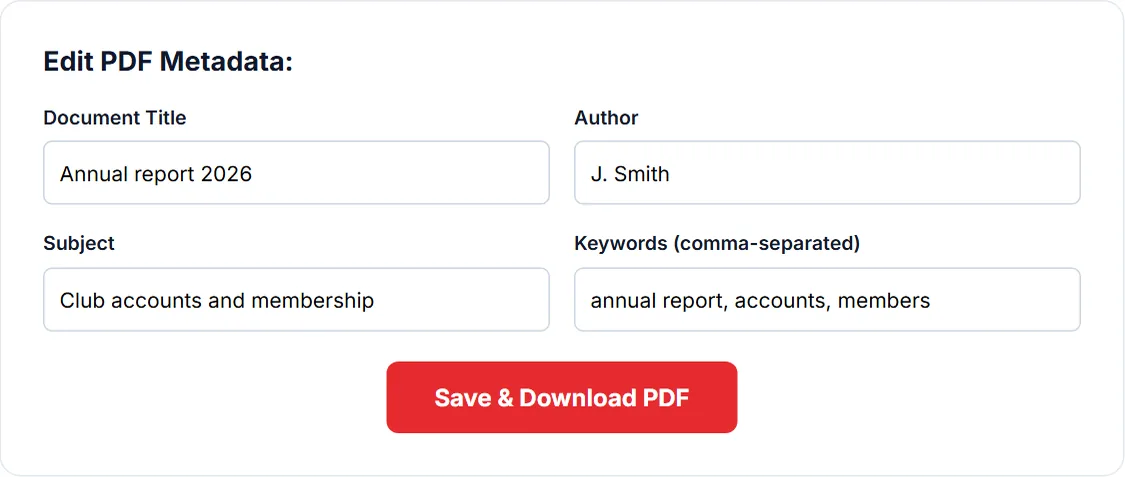
- Open PDF Metadata and choose the file. The current title, author, subject and keywords appear in four boxes.
- Empty the boxes you want cleared, or type new values.
- Click Save & Download PDF. The file is saved as metadata_ followed by its name.
Two fields cannot be cleared this way: the creator and the creation date are kept if the file has them. The producer is set to pdf-lib, the library that saves the file, and the modification date to the moment you save.
Step 2: remove the XMP copy
- Open Compress PDF with the file from step 1 and choose Lossless, which leaves every image as it is.
- Open Advanced options and tick Remove XMP metadata, page thumbnails and editing data.
- Click Compress PDF and download the result.
This removes the document's XMP packet, the XMP attached to pages, page thumbnails and the private editing data some programs store for themselves, and it drops every object nothing refers to any more. The title and author you set in step 1 stay as you left them. If the result says the file is already as small as the tool can make it, you received the original unchanged; that happens when there was nothing to remove.
Step 3: photos with camera data
A photo keeps its camera data only while its original JPEG is kept. Compress PDF at the Recommended or Strong level re-encodes the images, and a re-encoded image carries no camera data; an image the tool keeps, because re-encoding would not make it smaller, keeps whatever it had. Lossless leaves every image untouched.
The thorough option
Flatten PDF with Pages to images builds a new file from pictures of the pages. None of the old metadata, XMP, comments, attachments or text comes along; the new file records only what pdf-lib writes when it creates a document. The cost is that nothing in the result can be selected or searched, and the file is usually larger.
Check the result
Open the cleaned file in your PDF reader and look at Document Properties, or open it again in PDF Metadata: the four boxes show what is left. Programs differ in which copy they display, so check after step 2 as well as after step 1.
Frequently asked questions
Does removing metadata change the pages?
No. PDF Metadata, and Compress PDF at the Lossless level, leave the page content as it is; only the information about the file changes.
Can I remove the creation date?
Not with PDF Metadata, which keeps the creator and creation date if the file has them. Flatten PDF with Pages to images makes a new file with a new creation date, at the cost of the text layer.
Is the file uploaded to remove its metadata?
No. PDF Metadata, Compress PDF and Flatten PDF all read and rewrite the file in your browser, so it never leaves your device.
Sources
- Sponsored ISO standards for PDF technology (PDF Association): free access to ISO 32000-2 (PDF 2.0), which defines the document information dictionary and XMP metadata.
Tools used in this guide
More guides
- Are online PDF tools safe? What happens to your file
- How to check if a website uploads your file
- How to merge PDF files without uploading them
- How to compress a PDF for email
- How to compress a PDF to a specific size
- How to redact a PDF properly
- Can a redacted PDF be unredacted?
- How to make a scanned PDF searchable
- How to password protect a PDF
- How PDF tools work in a browser without uploading anything
- How to fill out a PDF that is not fillable
- PDF to JPG or PNG: which one to choose
- Split or extract PDF pages: which tool to use
Or see all guides and how this site compares with other PDF services.